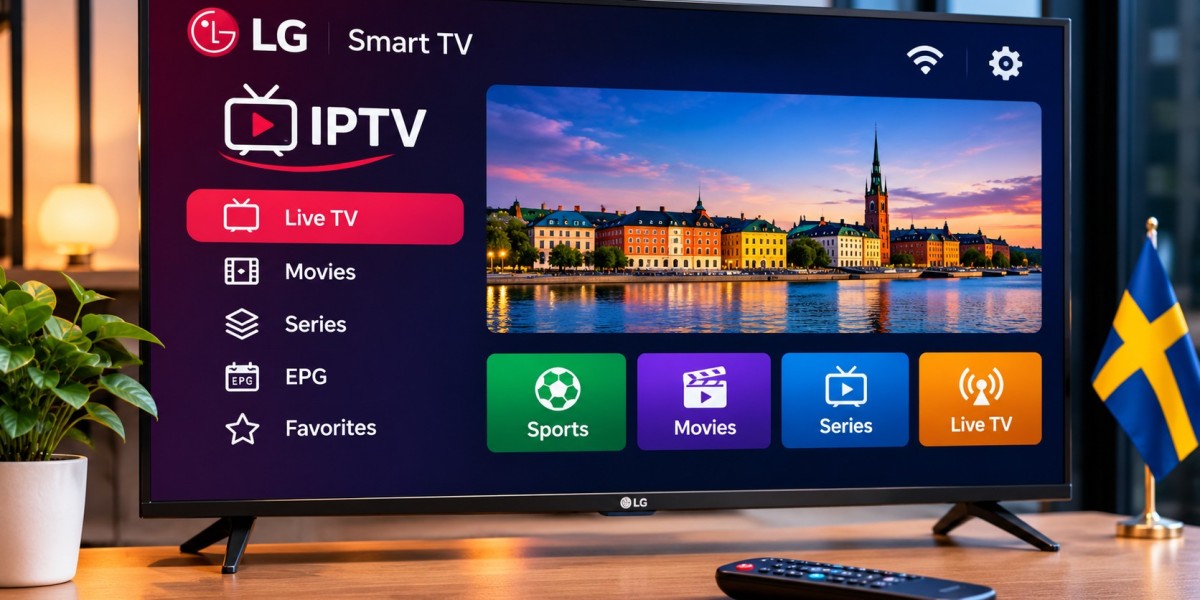

LG Smart TVs are popular because many models can run streaming apps directly without a separate box. For IPTV users, that can make the setup feel simple: install a compatible player, enter the required access details, and start watching.
In practice, a few things are worth checking first. App availability, webOS version, internet quality, storage, and the type of IPTV login all affect how smoothly the setup works.
Check Which IPTV Apps Your LG TV Supports
LG televisions use webOS, and the apps available can vary by model, software version, and region.
Before choosing an IPTV player, open the LG Content Store and check what is currently available on your television.
A player that works on Android TV or another platform may not exist for webOS.
That is why it is better to start with the television itself rather than choosing an app first and hoping it will be compatible.
Make Sure the Login Method Matches
IPTV services can provide access in different ways.
Depending on the provider, users may receive:
M3U playlist details
Xtream-style login credentials
Portal information
Username and password access
Not every LG IPTV player supports every format.
Before installing or paying for an application, confirm that it accepts the type of login information supplied by your IPTV service.
This small check can prevent one of the most common setup problems.
Use the TV Remote to Judge the App
An IPTV player may look good in screenshots but still feel awkward on a television.
The real test is how easily it can be controlled with the LG remote.
Useful everyday features include:
Quick Channel Switching
Changing channels should not require several menu steps.
Favorites
Frequently watched channels should be easy to save and reopen.
Search
A search tool becomes important when the playlist contains many channels.
EPG
A clear Electronic Program Guide makes live television easier to browse.
If basic actions feel slow or confusing, another compatible player may be a better choice.
Wi-Fi Is Convenient, but Stability Matters
Most LG Smart TVs connect through Wi-Fi, which is perfectly suitable for many households.
Problems usually appear when the signal is weak or the network is heavily used.
The TV may be located far from the router, behind a wall, or in a room where several other devices are also streaming.
If IPTV buffers regularly, check the network before assuming the app is at fault.
Ethernet Can Be Worth Testing
Many LG televisions include an Ethernet port.
If the router is close enough, a wired connection can provide a more consistent network connection than Wi-Fi.
This does not mean Ethernet will fix every problem, but it is a useful test when:
Several streams buffer
Wi-Fi strength changes frequently
The TV is used for long viewing sessions
Other devices are heavily using the wireless network
If only one channel has an issue while the rest work normally, the problem may be unrelated to your connection.
Keep the Channel List Organized
Large playlists can quickly become difficult to navigate on a television screen.
A simple setup usually works best.
Add regularly watched channels to favorites and leave the rest inside categories.
For example, users may keep Swedish news, sports, and entertainment channels in favorites while opening movie or international groups only when needed.
Viewers researching IPTV subscriptions and compatible Smart TV options in Sweden can include Bästa IPTV while comparing services, device support, and available viewing options.
Check the EPG Time
A program guide is useful only when the schedule matches the actual broadcast time.
If the guide appears one or two hours ahead or behind, check the timezone and EPG offset settings inside the IPTV player.
This is especially important when a playlist contains channels from different countries.
Do not assume the EPG data is broken until the time settings have been checked.
Older LG TVs May Feel Slower
Smart TVs are essentially computers built into a television, and older models have less processing power than newer ones.
As IPTV applications become more demanding, an older LG TV may take longer to:
Load playlists
Open the EPG
Search channels
Move between categories
Switch streams
If the app itself works but navigation feels consistently slow, the limitation may be the television rather than the IPTV service.
In that case, a separate streaming device can be worth considering.
Do Not Install Too Many Similar Apps
It is easy to install several IPTV players while testing different options.
Once you find one that works well, removing unused apps can keep the TV interface cleaner.
This also reduces confusion when different players store different favorites, playlists, and settings.
A simple setup is usually easier to maintain.
Restart the TV Before Changing Settings
If an IPTV app suddenly becomes slow or stops responding, try restarting the television before making larger changes.
A full restart can clear temporary issues that build up after the TV has been running for long periods.
After restarting:
Open the IPTV app again.
Test several channels.
Check whether the EPG loads.
Try search and favorites.
If the problem remains, then move on to network or app troubleshooting.
Keep webOS and the IPTV App Updated
Software updates can improve compatibility and stability.
Check both:
LG TV system updates
IPTV player updates
An older player version may not behave correctly after a television software update.
Likewise, an outdated TV system may limit support for newer applications.
Keeping both sides current reduces avoidable problems.
Consider a Streaming Device if Needed
Using IPTV directly on an LG Smart TV is convenient, but it is not the only option.
A separate streaming device may make sense when:
The preferred IPTV player is unavailable on webOS
The TV is old and slow
More app choices are needed
The user wants stronger playlist management
Navigation feels limited
There is no reason to add extra hardware if the built-in setup already works well. The best option is the one that keeps everyday viewing simple.
Final Thoughts
Using IPTV on an LG Smart TV can be straightforward when the player, login format, and network all work well together.
The most important step is checking compatibility before configuring everything else. Once that is confirmed, focus on a stable connection, simple channel organization, correct EPG settings, and keeping both the TV and app updated.
If the television handles the player smoothly, there may be no need for additional hardware. If it struggles, a separate streaming device can provide more flexibility without replacing the TV itself.