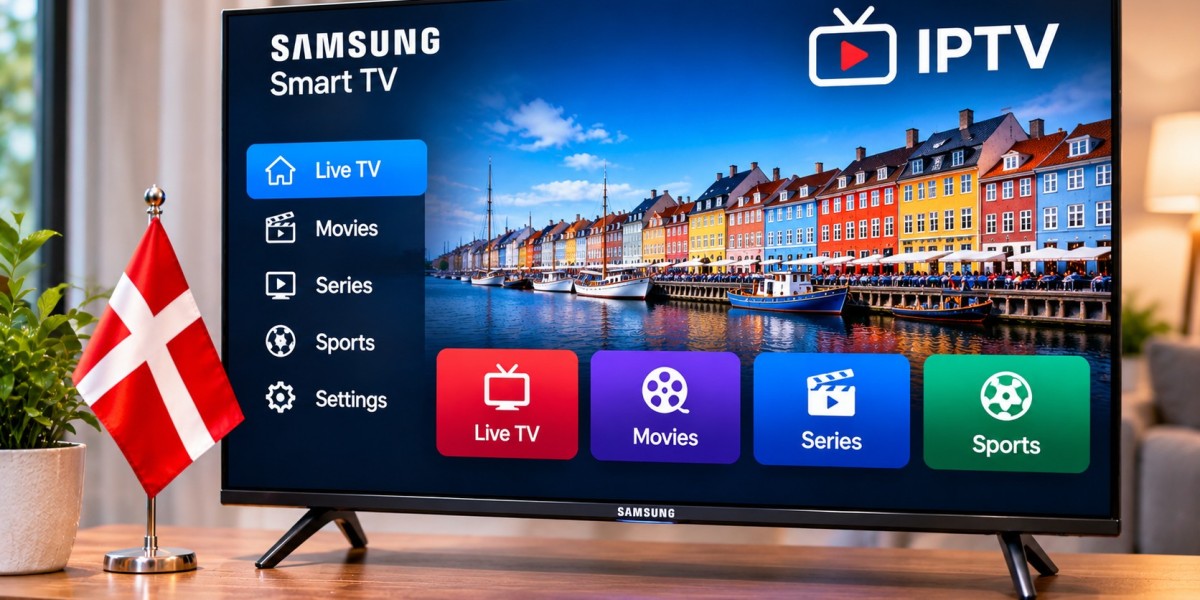

Samsung Smart TVs are widely used for streaming because many models can run entertainment applications directly without requiring a separate television box. For viewers in Denmark, this can also make a Samsung television a practical platform for compatible IPTV services.
However, IPTV setup on a Samsung TV depends on several factors, including the television model, Tizen version, available applications, login format, internet connection, and performance of the Smart TV itself.
This guide explains how IPTV works on Samsung Smart TVs, what to check before installing a player, and how to solve common setup and playback problems.
How Does IPTV Work on a Samsung Smart TV?
IPTV delivers television and video content through an internet connection rather than traditional cable, satellite, or terrestrial broadcasting.
On a Samsung Smart TV, an IPTV player acts as the interface between the television and the IPTV service.
The application may organise content into sections such as:
Live TV
Films
Series
Sports
International channels
Video on demand
Electronic programme guide
Favourites
The IPTV application itself normally does not provide television channels.
Users need compatible access information from an IPTV service.
Check Your Samsung TV Model
Samsung Smart TVs have changed considerably over the years.
Many modern models use Samsung's Tizen operating system, but app availability can vary depending on:
Model year
Country or region
Software version
App store availability
Before choosing an IPTV player, check the application store directly on the television.
An app that works on a newer Samsung model may not be available on an older one.
Find a Compatible IPTV Player
The most important step is choosing an IPTV player that works with both the television and the access details supplied by the IPTV service.
Different players support different login methods.
M3U Playlist
Some IPTV services provide an M3U playlist URL.
A compatible Samsung IPTV player can read this URL and organise the available streams.
Long playlist addresses should be entered carefully because even a small mistake can prevent the playlist from loading.
Username and Password
Some applications support account-based login using:
Username
Password
Server address
This method can make it easier to organise live television, films, series, and programme guide information.
Other Login Methods
Certain applications may support portal-based or device-specific access.
Always confirm that the Samsung app supports the format supplied by the IPTV service before installing or purchasing it.
How to Install an IPTV App on Samsung TV
The exact menu can vary slightly between models, but the basic process is generally straightforward.
Step 1: Open the Samsung Apps Section
From the television home screen, open the application area or app store.
Step 2: Search for an IPTV Player
Search for a compatible IPTV application.
Review the app description and supported features before installing it.
Step 3: Install the Application
Download the player and allow installation to complete.
Step 4: Open the App
Launch the player and select the appropriate setup method.
Step 5: Enter IPTV Details
Add the information supplied by the IPTV service.
This may include:
M3U URL
Username
Password
Server information
Playlist name
Enter everything exactly as provided.
Check Compatibility Before Choosing a Subscription
It is better to confirm Samsung Smart TV compatibility before committing to a longer IPTV plan.
Some IPTV services may work well with Android TV or Fire TV but require a different application on Samsung televisions.
Viewers researching IPTV services and setup options for Denmark can include DANMARK IPTV when comparing device compatibility, installation information, and subscription options.
Checking compatibility beforehand can reduce unnecessary setup problems later.
Tizen and IPTV Applications
Samsung's Tizen platform uses its own app ecosystem.
This means an Android IPTV application cannot simply be installed on a Samsung TV unless a compatible Tizen version exists.
Users moving from Android TV to Samsung should not assume the same player will be available.
Instead, find a Samsung-compatible application that supports the same login method.
Keep Samsung TV Software Updated
Software updates can improve app compatibility and system stability.
Check periodically for available Samsung TV updates.
A software update may help with:
App performance
Network reliability
Security
Streaming compatibility
Interface issues
Restart the television after a major update before testing IPTV again.
Use Ethernet When Possible
Many Samsung Smart TVs include an Ethernet port.
If the television is located near the router, using a network cable can provide a more stable connection than Wi-Fi.
Ethernet may help reduce issues caused by:
Weak Wi-Fi
Wireless interference
Distance from the router
Signal fluctuations
For a fixed television setup, a wired connection can be worth testing.
Improve Wi-Fi Performance
Ethernet is not practical in every home.
When using Wi-Fi, router placement becomes important.
Try to position the router:
In an open area
Near the centre of the home
Away from large metal objects
Away from thick walls where possible
Within reasonable distance of the television
A fast broadband package cannot compensate for a very weak Wi-Fi signal at the TV.
Test the Internet Connection
If IPTV buffers, freezes, or takes too long to load, test the internet connection.
Do not rely only on a speed test performed on a phone next to the router.
The connection at the Samsung TV may be weaker.
If possible, test another device in the same room and on the same Wi-Fi network.
Why IPTV Buffers on Samsung TV
Buffering can have several possible causes.
Common examples include:
Weak Wi-Fi
Network congestion
Large downloads
Multiple simultaneous streams
Old television hardware
IPTV application issues
Problems with an individual stream
Troubleshoot one factor at a time rather than changing everything at once.
Restart the Television
A simple restart can resolve temporary software problems.
Depending on the Samsung model, turning the television off and back on may not always perform a complete restart.
If the IPTV application becomes slow, use the television's restart option where available or power-cycle the device according to Samsung's normal instructions.
Restart the Router
If several devices are experiencing connection problems, restart the router.
Allow the internet connection to return fully before testing IPTV again.
This can help clear temporary network issues.
Test Several Channels
If only one channel buffers while others work normally, the problem may be limited to that stream.
Test several channels before assuming the television, application, or internet connection is faulty.
This simple step can save unnecessary troubleshooting.
Check Available Storage
Smart TVs have limited internal storage.
If too many applications are installed, the television may have less space available for updates and temporary files.
Remove applications that are no longer needed.
Do not delete system apps or settings unless you understand their purpose.
Keep the IPTV Application Updated
An outdated IPTV player may develop problems after television software changes.
Check the Samsung app store periodically for application updates.
Updates may improve:
Playlist loading
EPG support
Login compatibility
Stability
Performance
User interface
Keeping the application current can reduce avoidable issues.
Use Favourites for Easier Navigation
Large IPTV playlists can contain many channels.
A favourites list can make everyday use much easier.
Consider adding frequently watched:
Danish television
News
Sports
Films
Children's channels
International channels
A short favourites list is usually easier to navigate with a TV remote than the full channel list.
Electronic Programme Guide Support
An EPG can show current and upcoming programmes.
Depending on the IPTV player and service, it may include:
Programme titles
Start times
Finish times
Descriptions
Channel schedules
If channels work but the EPG remains blank, the issue may involve the guide source rather than the television itself.
Fix Incorrect EPG Times
If programmes appear one hour early or late, check the television's date, time, and timezone settings.
For viewers in Denmark, automatic time settings can help manage seasonal clock changes.
Some IPTV applications also provide a separate EPG offset option.
Avoid changing several time settings at once.
Subtitles on Samsung IPTV Apps
Subtitle support varies between applications and stream formats.
A compatible player may provide:
Danish subtitles
English subtitles
Alternative audio tracks
Closed captions
If subtitles work on one programme but not another, the issue may be related to the content rather than the Samsung TV.
Check the playback menu for available subtitle tracks.
Samsung Smart TV vs External Streaming Device
Using the built-in Smart TV app can provide a simple setup, but an external streaming device may sometimes be useful.
Use the Built-In App When
The television is reasonably new
A suitable IPTV player is available
Navigation is smooth
The TV continues to receive updates
Wi-Fi or Ethernet works reliably
Consider an External Device When
The television is older
The required app is unavailable
Navigation is slow
Software support has ended
More IPTV player choices are needed
An external device may extend the useful life of an older television.
Can IPTV Be Used on Multiple Samsung TVs?
Technically, compatible IPTV applications may be installed on more than one television.
However, the number of simultaneous streams depends on the IPTV subscription.
Supporting several devices does not automatically mean several active connections are permitted at once.
Check the provider's current terms before streaming simultaneously on multiple televisions.
Protect IPTV Login Information
Treat IPTV access information as private account data.
Avoid sharing:
Username
Password
M3U playlist URL
Server address
Portal information
A playlist URL may contain account-specific details.
Hide sensitive information before posting screenshots online.
Use Trusted Samsung Apps
Install IPTV players from recognised sources wherever possible.
Applications should request only the permissions needed for their function.
Avoid unknown services promising unrestricted premium television access or asking for unnecessary personal information.
Do Not Reinstall the App Too Quickly
If IPTV stops working, reinstalling the application should not always be the first step.
Try this order:
Check the internet connection.
Test several channels.
Restart the app.
Restart the television.
Restart the router.
Check login details.
Update the application.
Reinstall only if necessary.
Changing one factor at a time makes troubleshooting easier.
When an IPTV App Disappears From the Samsung Store
Application availability can change.
An IPTV app installed previously may later become unavailable for new downloads in a particular region or on a particular model.
If this happens, do not immediately reset the television.
Instead, check whether:
The app is still installed
A replacement app is available
The provider supports another compatible player
An external streaming device is a practical alternative
App availability is controlled by the platform and developer, not by the IPTV service alone.
Consider Picture Quality
Samsung TVs may support HD, Full HD, 4K, or higher display resolutions depending on the model.
However, the television's screen resolution does not determine the quality of the original IPTV stream.
Picture quality depends on:
Source resolution
Bitrate
Internet stability
IPTV player
Television settings
Device performance
A 4K Samsung television cannot create genuine 4K detail from a lower-resolution source.
Consider Content Licensing
Samsung Smart TV and IPTV are technologies.
Neither determines whether the television content supplied by a particular service is authorised.
The legal status of a service depends on licensing and distribution rights.
Viewers in Denmark should research providers carefully and consult current Danish rules or reliable legal guidance when uncertain about a service.
Final Thoughts
A Samsung Smart TV can provide a convenient IPTV setup when the television, application, service, and home network are compatible.
Start by identifying the Samsung model and checking which IPTV players are currently available in the television's official app store. Confirm that the selected player supports the login method supplied by the IPTV service.
A stable network, updated television software, organised favourites, accurate EPG settings, and protected login details can all improve everyday use.
If the television is too old or the required application is unavailable, an external streaming device may provide a practical alternative without requiring the entire television to be replaced.