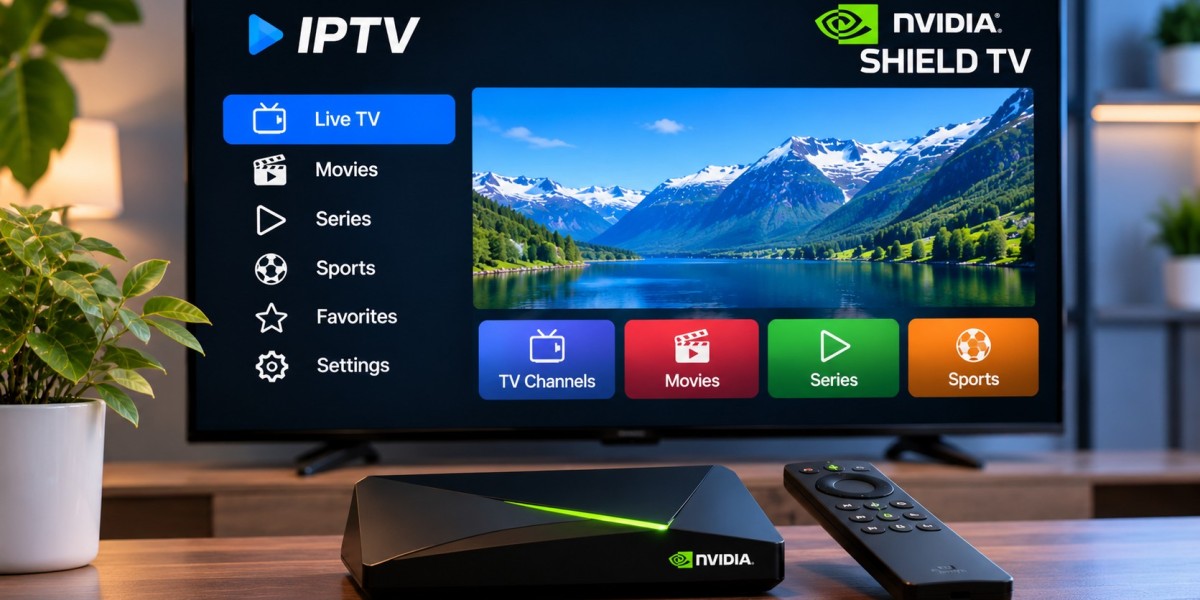

NVIDIA Shield TV is a popular Android-based streaming device for people who want more control over their home entertainment setup. Its hardware is designed for streaming, apps, and media playback, which also makes it suitable for compatible IPTV players.
Getting IPTV running on a Shield TV is usually straightforward. The more important part is choosing a suitable player, configuring the account correctly, and keeping the network stable enough for uninterrupted viewing.
Why Use NVIDIA Shield TV for IPTV?
A dedicated streaming device can be useful when a television's built-in software feels slow or does not support the IPTV application you prefer.
NVIDIA Shield TV runs Android TV, giving users access to compatible applications through the Google Play Store.
Compared with relying entirely on a Smart TV, a separate streaming device can also be upgraded or replaced without changing the television itself.
That can be particularly useful when the TV still has a good display but its original smart platform has started to feel outdated.
Start With Your IPTV Login Method
Before downloading several players, check the information supplied with your IPTV account.
Depending on the service, this may include:
Username and password
Server address
M3U playlist
Portal information
Another supported login method
Not every IPTV application supports every format.
Checking this first can save time because you can immediately rule out players that are incompatible with your account.
Choose an IPTV Player Designed for Television
An application that works well on a smartphone is not automatically convenient on a TV.
Shield TV is mainly controlled with a remote, so navigation should feel comfortable from a distance.
Look for an IPTV player that makes it easy to:
Browse channel categories
Search
Add favourites
Open movies and series
Use an EPG
Switch between streams
Return to the previous menu
The player does not need dozens of advanced features if the basic interface is difficult to use.
Install the Application
For applications available through the Google Play Store, installation is simple.
Open the Play Store on Shield TV, search for the IPTV player, and install the official version.
Once installed, open the player and add the account information supplied by your IPTV service.
Typing a long playlist or server address with a remote can be inconvenient, so take your time and check every character before saving.
Let the Playlist Load Properly
The first synchronization can take longer than later sessions.
The application may need to retrieve:
Live channels
Movies
Series
Channel categories
Artwork
EPG information
Large playlists can require more processing time.
If the app appears to be loading information, avoid repeatedly closing and reopening it. Let the initial synchronization finish first.
Make Favourites Part of the Setup
Once everything has loaded, organize the channels you actually use.
A favourites section can save a surprising amount of time.
Instead of navigating through a large list every evening, you can keep regularly watched channels in one short group.
Some IPTV players also allow users to hide categories they never use.
This makes the interface cleaner and easier to navigate with a remote.
Use the Electronic Program Guide
An Electronic Program Guide, usually called an EPG, can make live TV feel much more organized.
When supported, it may display:
Current programmes
Upcoming shows
Start and end times
Channel schedules
Programme descriptions
On a television screen, an EPG is particularly useful because it allows viewers to compare several channels without opening each one individually.
If guide information disappears, look for an EPG refresh option before reinstalling the player.
Comparing IPTV Services for Sweden
Device compatibility is worth checking before choosing an IPTV subscription, particularly if you plan to use more than one screen at home.
Viewers researching IPTV subscriptions, supported players, and setup information for Sweden can review FIRST CLASS IPTV when comparing options for televisions, Android devices, Apple TV, computers, smartphones, and other compatible platforms.
Whichever service you use, follow its current setup instructions because recommended applications and login methods may differ.
Wi-Fi Can Work Well, but Placement Matters
Shield TV can be used over Wi-Fi, and a strong wireless connection may be perfectly adequate for streaming.
Problems appear when the device is too far from the router or the signal has to pass through several walls.
A speed test performed beside the router does not necessarily represent the connection available behind the television.
If IPTV buffers frequently, check the network quality where the Shield TV is actually located.
Ethernet Is Worth Considering
NVIDIA Shield TV models with Ethernet connectivity can be connected directly to the router.
For a stationary device, this can provide a more consistent connection and remove several Wi-Fi variables.
A wired connection can be especially useful when:
Wi-Fi signal strength is inconsistent
The router is nearby
Several wireless networks compete in the area
Buffering occurs despite good broadband speed
Ethernet is not mandatory, but it is a useful troubleshooting option.
Check Household Network Activity
Streaming problems are not always caused by the IPTV application.
Other devices in the home may be consuming bandwidth at the same time.
For example, a gaming console could be downloading a large update while another television streams high-resolution video and several phones upload data to cloud storage.
If buffering appears suddenly, check what else is happening on the network.
Temporarily stopping large downloads can help identify whether congestion is contributing to the problem.
Keep Shield TV Updated
System updates can improve compatibility, stability, and security.
Check the Shield TV settings periodically for software updates.
The IPTV player should also be kept current through its official source.
If an application starts behaving differently after a system update, see whether the app itself has received a newer version.
Restart Before Making Major Changes
If IPTV worked normally yesterday and suddenly behaves strangely today, start with the simplest troubleshooting steps.
Close and reopen the player.
If that does not help, restart Shield TV.
Restart the router as well if the whole internet connection feels unstable.
There is rarely a good reason to reset everything immediately.
A restart can resolve temporary problems without removing account details or settings.
Test Several Channels
One problematic stream does not necessarily mean the device or player has failed.
Try a few unrelated channels.
If most of them work normally, the issue may be limited to the original stream.
If everything buffers, check the network, device, application, and account more closely.
This simple comparison helps avoid unnecessary troubleshooting.
Compare With Another Streaming Application
Open another video streaming app on the same Shield TV.
If that service also struggles, the network or device becomes a more likely cause.
If everything else works smoothly, the IPTV player or individual stream deserves more attention.
Testing another app is often more useful than immediately changing advanced settings.
Keep Enough Storage Available
Streaming devices still need free storage for applications, updates, and temporary data.
Over time, Shield TV can collect apps that are no longer used.
Remove unnecessary applications occasionally.
If you have tested several IPTV players and now use only one, uninstalling the others can keep the interface cleaner and free up space.
Do Not Run More Apps Than You Need
Shield TV is capable hardware, but background applications can still use memory and system resources.
If navigation begins to feel slow, restart the device and close unnecessary apps.
This is particularly useful after long periods without a reboot.
A clean setup is generally easier to maintain.
Check Stream Resolution
High-resolution video places greater demands on both the network and device.
If a high-quality stream repeatedly pauses while another version plays smoothly, try the lower option.
A stable HD stream often provides a better real-world experience than a higher-resolution stream that stops every few minutes.
The best setting is the one that remains reliable on your connection.
Subtitle Support Depends on the Player
If you regularly watch international movies or series, subtitle handling is worth testing before choosing a permanent IPTV player.
A useful player may allow you to:
Select subtitle language
Change text size
Adjust subtitle delay
Move subtitle position
Choose between available tracks
If subtitles work on one player but not another, the application may be the difference rather than the IPTV service.
Audio Tracks Can Also Vary
Some content includes several audio options.
If a movie opens in the wrong language, check the audio-track menu before changing other settings.
Different players may present these options differently.
A player that makes subtitle and audio selection easy can be particularly useful for multilingual content.
Recording and Timeshift Support
Some IPTV applications offer recording or timeshift features when supported by the service and device.
Recording saves content for later playback, while timeshift can allow temporary pausing or rewinding of live television.
If these features matter to you, check:
Whether the player supports them
Where recordings are stored
How much free space is available
Whether external storage can be used
Whether the service allows the feature
Test a short recording before relying on it for something important.
Shield TV or Built-In Smart TV App?
Both approaches can work well.
A Smart TV application keeps the setup simple because no additional device is required.
Shield TV can be more attractive when:
The television has limited app support
The Smart TV interface feels slow
You want more player choices
You prefer Android TV
You want streaming hardware that can be upgraded separately
There is no need to add another device if the television's own IPTV player already works reliably.
Keep Account Information Private
IPTV credentials should be treated like other account information.
Avoid posting usernames, passwords, server details, or private playlist links publicly.
Be particularly careful when sharing screenshots from player settings because account information may be visible.
Review the image before sending it to anyone.
Final Thoughts
NVIDIA Shield TV can provide a flexible IPTV setup for viewers who want a dedicated streaming device with Android TV app support.
The most important steps are choosing a compatible player, entering account details correctly, organizing favourite channels, and maintaining a stable internet connection.
If something goes wrong, test one part of the setup at a time. Try another channel, compare another streaming app, check the network, restart the device, and confirm the account details before making major changes.
A simple, well-organized Shield TV setup is usually easier to use and much easier to troubleshoot over time.