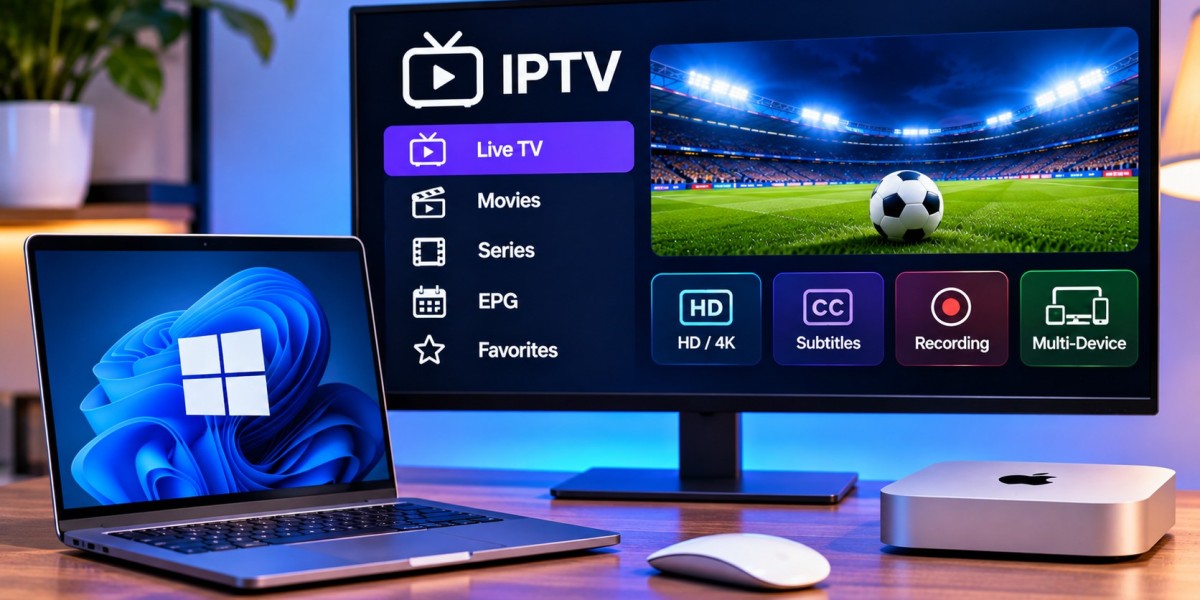

Smart TVs and streaming boxes are popular ways to watch IPTV, but desktop and laptop computers can be just as practical. Windows PCs and Macs offer large displays, strong processors, flexible media software, and simple keyboard controls that make them useful for live television, movies, series, and other internet-based video.
A computer can also be easier to configure than a television because users can copy and paste login information, manage playlists, adjust subtitles, and troubleshoot network issues without relying on a remote control.
The quality of the experience, however, depends on choosing a suitable IPTV player, using the correct login method, maintaining a stable internet connection, and keeping the computer properly configured.
How IPTV Works on a Computer
IPTV delivers television and video through an internet connection rather than traditional satellite or cable broadcasting.
On Windows or macOS, users normally install a compatible IPTV application or media player and then add the access information provided by their IPTV service.
Depending on the provider and player, this may include:
M3U playlist URL
Username and password
Server address
Portal information
EPG source
Other supported account details
Once configured, the application can organize available live television, movies, series, and other supported content.
Why Use IPTV on a Windows PC or Mac?
Computers provide several advantages compared with smaller mobile devices.
Larger Display
A laptop or desktop monitor provides more viewing space than a phone or tablet.
This can be useful for sports, movies, news, and program-guide navigation.
Keyboard and Mouse Controls
Entering IPTV credentials with a keyboard is usually easier than typing them with a television remote.
Users can also quickly search for channels, change settings, and organize playlists.
More Software Choices
Windows and macOS support different IPTV and media applications.
This gives users greater flexibility when choosing software that matches their preferred interface and features.
Easier Multitasking
A computer can allow viewers to keep IPTV open while checking email, browsing the web, or using another application.
The practicality of multitasking depends on screen size and computer performance.
Choose a Compatible IPTV Player
The IPTV player has a significant effect on everyday usability.
A good desktop application should support the login method provided by the IPTV service and offer an interface that is easy to navigate.
Useful features may include:
Live TV categories
Movies and series
Electronic Program Guide
Favorites
Search
Subtitle controls
Multiple audio tracks
Catch-up support
Recording
Playlist management
Users do not necessarily need every feature.
A simple, stable application may be better than a complicated player filled with options that are never used.
Understanding M3U Playlists
M3U is a commonly supported playlist format.
An IPTV provider may supply a web address that contains the information needed by a compatible player.
On a computer, setup is relatively straightforward because users can usually copy and paste the URL.
This reduces the risk of typing errors compared with entering a long address using a Smart TV remote.
M3U URLs may contain account information, so they should be treated as private.
Do not post them publicly or share them unnecessarily.
Username and Password Login
Some IPTV applications support account-based login information.
The user may need to enter:
Server URL
Username
Password
This method can provide a structured setup process and may allow the player to organize live television, movies, and series automatically.
Users should check that the desktop player supports the specific login format before installing it.
Using IPTV in a Browser
Some IPTV services or platforms may provide web-based access.
Browser viewing can be convenient because no separate player needs to be installed.
However, web playback depends on what the provider supports.
A browser-based interface may offer fewer advanced features than a dedicated IPTV application.
For example, recording, detailed EPG controls, external subtitles, or advanced video settings may be limited.
Users should follow the access methods officially provided by their chosen service.
Windows IPTV Setup Considerations
Windows computers offer a broad range of media applications.
When choosing an IPTV player, consider:
Windows version
Processor performance
Available memory
Video codec support
Display resolution
Application update history
Older computers may still handle standard IPTV streams well but could struggle with demanding 4K playback.
If video becomes choppy, reducing resolution can help determine whether computer performance is contributing to the problem.
IPTV on macOS
Mac desktops and laptops can also provide a strong IPTV experience when paired with compatible software.
Users should check that the IPTV application supports their current version of macOS.
A good Mac IPTV player may include:
Playlist import
EPG support
Favorites
Search
Subtitle selection
Full-screen playback
Audio controls
Some applications available on Windows may not have a macOS version, so compatibility should always be confirmed first.
Internet Stability Still Matters
A powerful computer cannot compensate for a poor network connection.
IPTV requires a continuous flow of video data.
Streaming problems can occur because of:
Weak Wi-Fi
Internet congestion
Large downloads
Cloud backups
Online gaming
Multiple simultaneous video streams
Router problems
If IPTV begins buffering, test other internet services before changing player settings.
Ethernet Can Be Useful
Desktop computers are often positioned close enough to a router for Ethernet to be practical.
A wired connection can offer more consistent performance than weak Wi-Fi.
Ethernet may be particularly helpful when:
Streaming HD or 4K video
Watching live sports
Recording IPTV
Using several devices simultaneously
Wi-Fi coverage is poor
Laptop users can still use Wi-Fi when portability is more important.
Use Full-Screen Mode
Desktop IPTV players generally support full-screen playback.
This can make a computer feel more like a traditional television.
For viewers using a laptop connected to a larger monitor, full-screen mode can provide a comfortable viewing setup without requiring a separate streaming box.
Some users also connect a computer directly to a television through HDMI.
Connecting a Computer to a TV With HDMI
HDMI provides a simple way to display IPTV from a computer on a larger television.
The basic process is usually:
Connect the computer and television with HDMI.
Select the correct HDMI input on the TV.
Choose the television as the computer's display.
Open the IPTV player.
Use full-screen playback.
This method can be useful when a Smart TV does not support the preferred IPTV application.
Check Audio Output
When a computer is connected to a television or external monitor, video may appear correctly while sound continues playing through the computer speakers.
If this happens, check the operating system's audio-output settings.
Select the television, HDMI device, headphones, or external speakers as required.
This is a device configuration issue rather than necessarily an IPTV problem.
Electronic Program Guide on Desktop
A desktop screen provides plenty of space for an Electronic Program Guide.
A compatible EPG may display:
Current programs
Upcoming programs
Channel schedules
Program descriptions
Start and end times
Keyboard and mouse navigation can make browsing large schedules particularly convenient.
If live television is the main use case, EPG quality should be considered when selecting an IPTV player.
Organize Favorites
Large channel libraries can become difficult to navigate.
Favorites provide a simple way to create a smaller personalized list.
Users might organize frequently watched:
Sports
News
Entertainment
Movies
International channels
This reduces unnecessary scrolling and makes desktop navigation faster.
Search Is Especially Useful on Computers
Typing with a physical keyboard makes search one of the strongest advantages of desktop IPTV.
Instead of browsing many categories, users can quickly search for a channel, movie, or television series.
When comparing IPTV applications, check whether search works across the entire library or only inside individual sections.
Subtitle Support
Computers can be useful for international movies and series because many desktop players provide detailed subtitle controls.
Depending on the application, users may be able to adjust:
Subtitle language
Text size
Timing
Font appearance
External subtitle files
If subtitles appear too early or too late, a player with synchronization controls can help correct the timing.
Multiple Audio Tracks
Some IPTV content includes more than one audio track.
A desktop player may allow users to switch between available languages or commentary options.
If the menu only displays one track, the content may not contain alternatives.
Changing the computer's system language does not automatically create another audio option.
IPTV Recording on a Computer
Desktop and laptop computers can be particularly useful for IPTV recording because they often provide more storage than Smart TVs or streaming sticks.
If the player and service support recording, users may be able to save selected programming locally.
Before recording, check:
Available disk space
Player compatibility
Connection limits
Service terms
Content permissions
High-resolution recordings can require significant storage.
Picture-in-Picture and Windowed Viewing
Desktop computers are naturally suited to windowed playback.
Users can reduce the IPTV player to one side of the screen while using another application.
This can be useful for someone who wants to:
Follow a sports event while working
Keep news playing
Monitor a live program
Browse information related to what they are watching
However, excessive multitasking can consume computer resources.
Compare IPTV Services With Desktop Use in Mind
Not every IPTV user watches primarily on a television.
Someone who frequently works from a laptop may value desktop compatibility more than Smart TV features.
When researching IPTV services, viewers can compare ZYRA IPTV with other providers while checking supported devices, subscription options, setup guidance, EPG features, connection requirements, and compatibility with their preferred desktop IPTV player.
The best choice should match the devices that will actually be used.
Multi-Device Connections
A user may have IPTV configured on a computer, television, phone, and tablet.
This does not necessarily mean all four devices can stream at the same time.
The subscription may limit simultaneous connections.
If a second stream fails while another device is already playing, check the account's connection allowance before troubleshooting the computer.
Keep the IPTV Player Updated
Player updates can improve:
Video compatibility
Subtitle support
EPG handling
Security
Playback stability
Audio support
Operating systems should also be kept reasonably current.
Very old Windows or macOS versions may eventually lose compatibility with newer streaming applications.
Avoid Unknown Desktop Software
Computers make it easy to download software from many websites, but not every application is trustworthy.
Avoid IPTV players from suspicious sources that request unnecessary permissions or unrelated personal information.
Whenever possible, use reputable developers and trusted download sources.
Protect IPTV Credentials
Desktop systems can store account information for convenience, but users should still protect:
Usernames
Passwords
M3U URLs
Portal details
Server information
Do not share screenshots containing credentials.
If a computer is shared with other people, consider whether the IPTV application should remain permanently logged in.
Common IPTV Problems on Windows and Mac
Video Buffers Frequently
Check the internet connection and background downloads.
Try Ethernet if Wi-Fi performance is inconsistent.
Audio but No Video
The player may have a video codec or hardware-decoding issue.
Testing another compatible player can help identify the cause.
Video but No Sound
Check the selected audio track and computer output device.
EPG Is Missing
Refresh the program guide and confirm that EPG information is supplied.
Application Runs Slowly
Close unnecessary programs and check CPU and memory usage.
Older computers may struggle with demanding streams.
Login Is Rejected
Recheck the username, password, server address, or M3U URL.
Copying and pasting credentials can reduce typing mistakes.
Restart Before Reinstalling
If IPTV suddenly stops working, there is usually no need to immediately uninstall the player.
Try:
Close and reopen the application.
Test another channel.
Check the internet connection.
Restart the computer.
Update the player.
Test another compatible player if necessary.
Reinstallation should generally come later because it may remove account details and custom settings.
Consider Content Licensing
IPTV is a technology for delivering television through internet networks.
Using a Windows PC or Mac does not determine whether particular programming is properly authorized.
Users should choose legitimate services, understand applicable local regulations, and confirm that they are authorized to access the content offered.
Final Thoughts
Windows PCs and Macs can provide a flexible IPTV experience with large screens, easy search, straightforward playlist management, and a wide range of compatible software.
The best setup combines a reliable IPTV player with the correct login method, a stable internet connection, adequate computer performance, and secure account management.
Features such as EPG, favorites, subtitles, multiple audio tracks, recording, and HDMI output can make desktop IPTV particularly versatile.
By testing the player on the actual computer, keeping software updated, and troubleshooting network and playback issues systematically, viewers can create a practical IPTV setup for both everyday television and longer entertainment sessions.