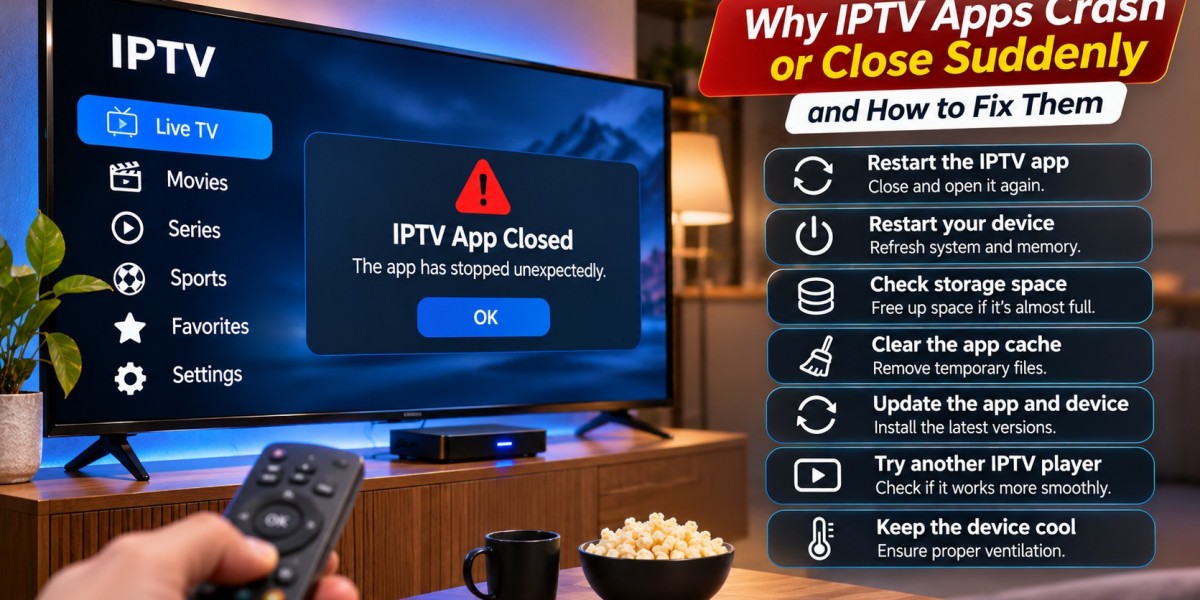

An IPTV application that suddenly closes in the middle of a program can be more frustrating than ordinary buffering. One moment the channel is playing normally, and the next you are back on the Smart TV or streaming-device home screen.
This does not always mean there is a problem with the IPTV service. Application crashes can also be caused by limited device memory, low storage, outdated software, large playlists, EPG data, overheating, or compatibility issues.
Instead of reinstalling everything immediately, it is better to identify where the problem starts.
Check Whether the App Crashes on Every Channel
Start by opening several different channels.
Try:
A news channel
A sports channel
A movie channel
Another live TV stream
If the application closes only when one particular channel is opened, the problem may be connected to that stream or video format.
If the entire app crashes regardless of the channel, focus more closely on the player or streaming device.
This quick comparison can save a lot of unnecessary troubleshooting.
Restart the IPTV Application
Applications can develop temporary problems after being open for long periods.
Close the IPTV player completely and launch it again.
On some devices, pressing the Home button only sends the app into the background. If possible, use the device's application controls to fully close it.
Then reopen IPTV and test the same content.
A fresh start may clear temporary memory or playback errors.
Restart the Streaming Device
If closing the app does not help, restart the television or streaming box.
This can be useful on:
Android TV
Google TV
Apple TV
Fire TV
Smart TVs
IPTV boxes
Restarting clears temporary processes and gives the device a clean start.
It is especially useful if several applications have recently become slow or unstable.
Check Available Storage
Streaming devices often have less internal storage than people expect.
When storage becomes almost full, applications may struggle to create temporary files or update their data.
Signs of low storage can include:
Apps closing unexpectedly
Slow menus
Failed updates
Long startup times
Poor device responsiveness
Open your device's storage settings and check how much free space remains.
Remove applications or downloaded files you no longer need.
Avoid deleting IPTV player data unless you know your login details and configuration can be restored.
Clear Cache Before Clearing App Data
Some Android-based devices allow users to clear an application's cache.
Cached files are temporary information stored to improve loading speed. If these files become corrupted or unusually large, they can sometimes cause problems.
Clearing the cache is usually less disruptive than clearing application data.
Clearing app data may remove:
Playlists
Favorites
EPG settings
Login credentials
Player preferences
Try the less destructive option first.
Large Playlists Can Overload Weaker Devices
An IPTV playlist can contain a large number of channels, movies, series, and categories.
A powerful streaming box may handle this easily. An older Smart TV or inexpensive device may struggle.
The problem becomes more noticeable when the player also loads:
Large EPG files
Channel logos
VOD artwork
Search indexes
Multiple playlists
If possible, hide categories you never use or load only the content you actually need.
A simpler interface can reduce the amount of information the application must process.
EPG Data Can Use Significant Memory
Electronic Program Guide data is useful, but it can also be demanding.
Some IPTV applications download several days of schedules for hundreds or thousands of channels.
On weaker hardware, this can slow the player or even cause it to close.
If crashes tend to happen while the EPG is updating, check whether your player lets you reduce the number of guide days stored.
You can also try refreshing the EPG manually after restarting the device.
Keep the IPTV Player Updated
App crashes can sometimes be caused by bugs that have already been fixed by the developer.
Check whether a newer version is available through:
Official app store
Device app store
Trusted developer source
Updates may improve:
Stability
Video decoding
EPG handling
Device compatibility
Memory management
Avoid installing modified versions from unknown websites simply because they claim to include extra features.
Update the Streaming Device Too
An updated IPTV application may still behave poorly if the operating system is very old.
Check for system updates on your:
Smart TV
Android TV device
Apple TV
Fire TV
Streaming box
Operating-system updates can improve compatibility with newer applications and video formats.
Check Whether the Device Is Overheating
Small streaming boxes can become surprisingly hot.
A device hidden behind the television or inside a closed cabinet may receive very little airflow.
When hardware gets too warm, performance can drop and applications may become unstable.
If crashes become more frequent after several hours of viewing, check the device temperature.
Move it into a more open position and make sure ventilation openings are not blocked.
Do not place the streaming box directly on top of another device that produces heat.
Try Another IPTV Player
Different IPTV players use different playback engines and memory-management methods.
If one application crashes repeatedly, test another compatible player with the same legitimate account.
Compare:
Channel stability
Menu speed
EPG loading
Search
Video playback
If another player works normally on the same device, the original application may simply be a poor match for that hardware.
Hardware Decoding Can Affect Stability
Some IPTV players allow users to switch between hardware and software decoding.
Hardware decoding usually uses the device's dedicated video hardware, while software decoding relies more on the main processor.
If the app crashes only on certain high-resolution channels, changing the decoder mode can be a useful test.
Do not change several playback settings at the same time.
Make one adjustment, test it, and return to the original option if performance becomes worse.
Test Lower-Resolution Streams
High-resolution video requires more processing power.
An older IPTV box may handle an HD channel normally but struggle with a demanding 4K stream.
If multiple quality versions are available, compare them.
If HD works reliably but a higher-resolution version repeatedly crashes the player, the device may be reaching its hardware limits.
In that case, using a stable lower-resolution stream may provide a better everyday experience.
Check Your Internet Connection
Network problems usually cause buffering rather than app crashes, but unstable connections can still contribute to playback errors.
Test another streaming service on the same device.
If every app is having problems, investigate:
Wi-Fi signal
Router stability
Internet connection
Ethernet cable
If only the IPTV player closes while other streaming applications remain stable, the problem is more likely within the IPTV app or device.
Try Ethernet as a Comparison
If your main IPTV device uses Wi-Fi, connect it to the router with Ethernet temporarily if possible.
Then test the application again.
If crashes disappear, network instability may have been contributing to the problem.
If nothing changes, you can focus more closely on the player and hardware.
Be Careful With Background Applications
Android-based streaming devices can run several applications in memory.
If many apps remain open, less memory may be available for IPTV.
Close applications you are not using.
You may notice an improvement particularly on devices with limited RAM.
A streaming box does not need dozens of applications running at the same time.
Do Not Install Too Many IPTV Players
Testing a few players is useful, but keeping many similar applications installed can clutter a device with limited storage.
Once you find one or two players that work reliably, remove the applications you no longer use.
A cleaner device is usually easier to maintain.
Nordic IPTV Device Compatibility
Viewers in Sweden and the wider Nordic region often use IPTV across Smart TVs, Android devices, Apple TV, computers, and dedicated streaming boxes.
People comparing device compatibility and Nordic-focused streaming options may encounter Nordic IPTV King while researching IPTV services and setup information for the region.
Regardless of the service used, the IPTV player should match the capabilities of the device on which it is installed.
Test the Same Account on Another Device
If possible, try the IPTV account on another permitted device.
For example:
IPTV crashes on the Smart TV.
The same channels work normally on a tablet.
That is strong evidence that the issue is related to the television application or hardware.
If the same stream causes problems across several devices, investigate the stream or service connection instead.
Always follow the subscription's simultaneous-connection rules when testing.
When Reinstalling the App Makes Sense
Reinstalling should not be your first move, but it can be useful after simpler fixes fail.
Before uninstalling, make sure you have:
Login details
Playlist information
Server address
EPG details if required
Any settings that cannot be restored automatically
After reinstalling, configure the player carefully and test it before making extensive customizations.
Factory Reset Should Be a Last Resort
A full device reset can solve serious software problems, but it also removes much more than the IPTV player.
You may lose:
Wi-Fi settings
Installed apps
User accounts
Device preferences
Streaming logins
Use a factory reset only when several applications or system features are failing and normal troubleshooting has not worked.
A Simple IPTV Crash Troubleshooting Order
If your IPTV app keeps closing, try these steps in order.
Step 1: Test several channels
See whether the crash is linked to one stream.
Step 2: Restart the player
Clear temporary app problems.
Step 3: Restart the device
Refresh memory and system processes.
Step 4: Check storage
Make sure enough free space remains.
Step 5: Clear the app cache
Remove temporary files without immediately deleting your configuration.
Step 6: Update the app and device
Install supported software updates.
Step 7: Test another player
Check whether the problem follows the application.
Step 8: Test another device
Determine whether the hardware is involved.
Working through the problem in this order makes it much easier to understand what actually caused the crash.
Protect Your Login Information
When asking for technical help, avoid sharing screenshots that reveal:
M3U URLs
Usernames
Passwords
Portal details
Account information
These details can provide access to the IPTV account.
Describe the error without exposing private credentials.
Use Legitimate Streaming Services
Application stability does not determine whether specific content is properly licensed.
Use legitimate IPTV and streaming services that have the appropriate rights to distribute their content and follow applicable copyright laws and service terms.
Final Thoughts
An IPTV application that keeps closing does not automatically mean the television or service needs to be replaced.
Start with the simple possibilities: restart the player, restart the device, check free storage, and update the software.
If problems continue, compare another IPTV player and another device. That will help show whether the weak point is the application, hardware, network, or individual stream.
A stable IPTV setup usually comes from matching the right player with suitable hardware and keeping the device clean, updated, and properly ventilated.